Intro to VR and AR at Home: Headsets, Space, and Safety Tips
A friendly starter guide to VR and AR at home—choosing headsets, sizing your play space, and essential safety, comfort, and setup tips for beginners.
Understanding VR and AR at Home
Virtual Reality (VR) and Augmented Reality (AR) bring interactive computing into everyday spaces by blending digital content with the physical world in different ways. VR encloses you in a fully digital environment, creating a powerful sense of presence that is ideal for gaming, simulation, fitness, and cinematic experiences. AR overlays information onto your surroundings, enabling hands-free guidance, visualization, and collaboration while you stay anchored to reality. At home, both fall under the broader umbrella of consumer electronics that enhance entertainment, productivity, and learning. You can step into workouts with real-time coaching, design a room by previewing furniture at scale, or collaborate with friends using shared virtual objects. The big idea is spatial computing: content that understands your location, orientation, and gestures. This calls for thoughtful choices about headsets, space planning, and safety practices. With good setup habits, you can enjoy immersive sessions without turning your living room into a hazard zone, keeping experiences comfortable, high-quality, and fun for everyone.
Choosing the Right Headset and Features
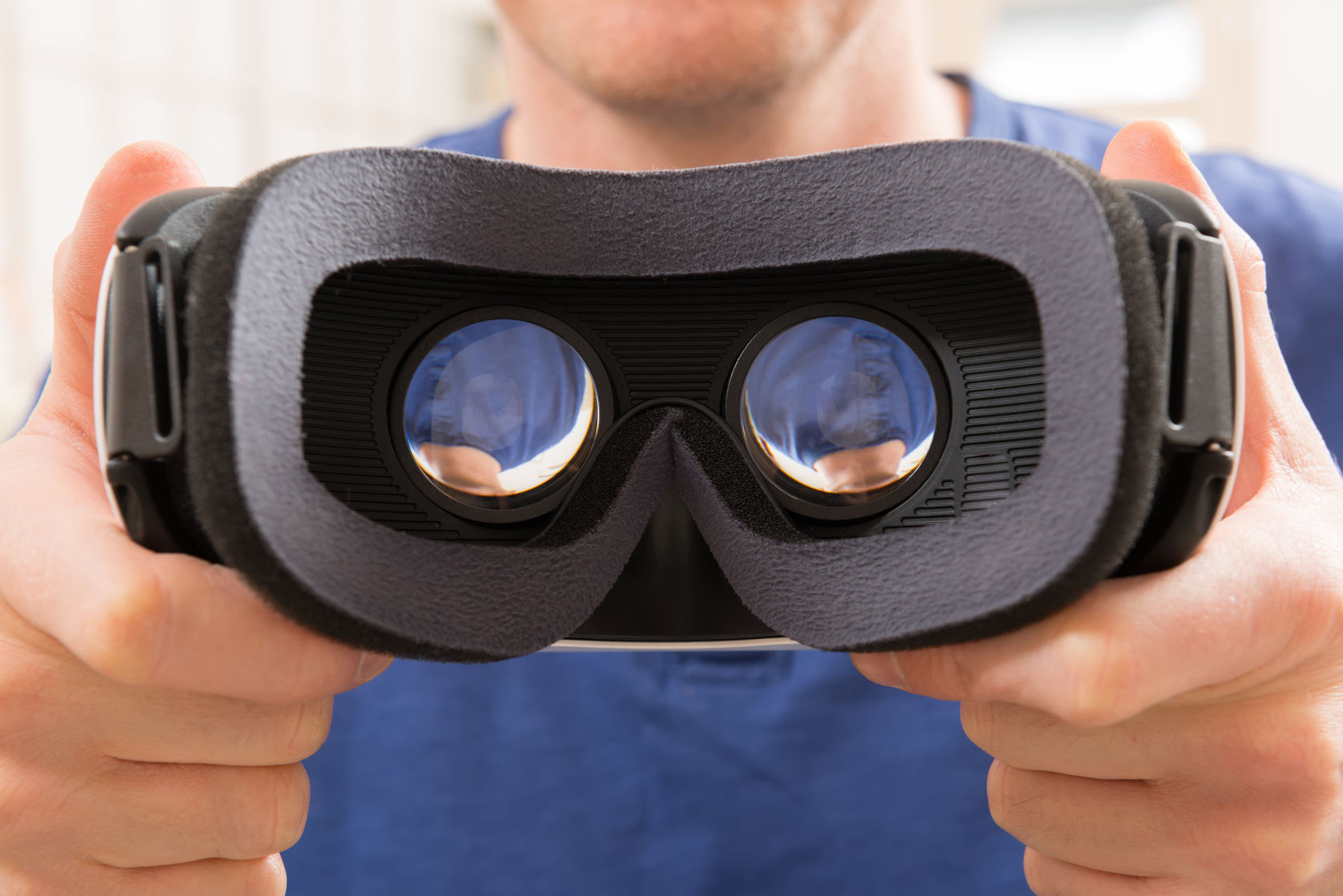
Picking a headset starts with how you plan to use it. Standalone VR models focus on convenience and portability, while PC-tethered options can push higher fidelity if you have capable hardware. AR devices and smart glasses emphasize passthrough and see-through overlays for productivity and guided tasks. Core specs include resolution, refresh rate, and field of view (FOV), which influence clarity and comfort. Tracking matters too: inside-out tracking uses onboard cameras to map your space, while external beacons are less common at home. Consider whether you prefer controllers, hand tracking, or both, and check for haptics and reliable headset audio. Comfort features like adjustable interpupillary distance (IPD), balanced weight, breathable face padding, and secure straps help with long sessions. Battery life, charging options, and quick-swap face gaskets also affect daily use. For AR, look for robust depth sensing and stable anchors so digital objects stay locked in place. Keep your choices aligned with typical computers and consumer electronics buying principles: match features to needs, not just specs.
Planning Your Space for Safe Immersion
A safe play area is essential for room-scale experiences. Clear floor space, remove tripping hazards, and secure loose rugs or cables. Pay attention to ceiling fans, low-hanging lights, and sharp furniture corners. Reflective mirrors and glossy surfaces can confuse some tracking systems, so reposition or cover them if needed. Good, even lighting helps cameras see your surroundings without harsh glare. Define a guardian boundary that matches your cleared space and test it with slow movements before intense sessions. If you must play near valuable displays, leave extra buffer room to avoid accidental swings. For seated or standing activities, choose a stable chair without wheels and position yourself away from edges. Cable management matters: route tethers overhead or along walls to prevent tangles. AR users should check that passthrough or see-through views are crisp and lag-free in the areas where they'll walk. Keep pets and bystanders out of the active zone, and set a simple routine to recheck your space before each session.
Setup and Performance Tuning for Smooth Sessions
Start with proper fit: tighten straps evenly, adjust IPD, and angle the headset until the image is sharp edge to edge. Clean lenses with a microfiber cloth to reduce blur and eye strain. Pair controllers, update firmware, and complete room scans or mapping carefully so the device understands your floors and walls. Configure the guardian boundary at a realistic size, then test it by reaching, squatting, and sidestepping. For PC-based VR or wireless streaming, aim for a fast, uncongested network and close-range placement of your router or adapter. Tune graphics settings: modest render scaling, smart reprojection or motion smoothing, and balanced frame timing often beat maximum resolution. Calibrate audio levels to hear cues without drowning out real-world alerts. Enable hand tracking only if lighting is adequate and your content supports it well. Explore accessibility settings like vignette intensity, height calibration, and locomotion modes. Finally, manage thermals and battery care by avoiding extended high-heat charging and giving devices cool-down time between long sessions.
Comfort, Health, and Safety Essentials
Comfort starts with pacing. Ease into VR with shorter sessions, gradually increasing duration as your body adapts. If you feel motion discomfort, switch to teleport locomotion, enable vignetting, or reduce acceleration. Stabilizing your gaze with a fixed horizon can help. Take regular breaks to blink, stretch, and breathe; follow a simple 20-20-20 rule to rest your eyes. Hydration and room ventilation prevent fatigue, and a small fan can enhance comfort and reduce heat buildup behind the visor. Mind posture: keep wrists neutral, distribute weight evenly, and bend at the knees when reaching low. For fitness apps, warm up beforehand and cool down afterward. Supervise children, set clear time limits, and ensure content is age-appropriate. Keep pets out of the play area to avoid collisions. Practice hygiene by wiping face gaskets and controllers with non-abrasive wipes and letting them dry completely. If you wear glasses, consider spacers or prescription inserts to protect lenses and preserve image clarity.
Privacy, Etiquette, and Long-Term Care
Many modern headsets use cameras and sensors to understand your room. Respect privacy by informing others when mapping or recording, and keep mirrors or windows in mind where reflections may capture more than you expect. Use safety features like casting indicators and recording lights responsibly, and get consent before sharing clips. In multiplayer, maintain spatial awareness and mute or block if interactions become uncomfortable. For AR, check passthrough before moving quickly and confirm that occlusion is reliable so you don't misjudge obstacles. Store devices away from direct sunlight; intense light through lenses can damage displays. Keep lenses dust-free and never use harsh cleaners. Maintain battery care by avoiding extreme temperatures and long periods at very low or very high charge. Transport your gear in a protective case to prevent strap warping and connector damage. Periodically revisit boundaries, recalibrate controllers, and review parental controls. Small, consistent maintenance habits keep your computers and consumer electronics investment reliable and ready for every session.